Signing in
Go to app.motif.org.au

Click sign in with email

Use your email address and password to sign in. You’ll arrive at your dashboard.
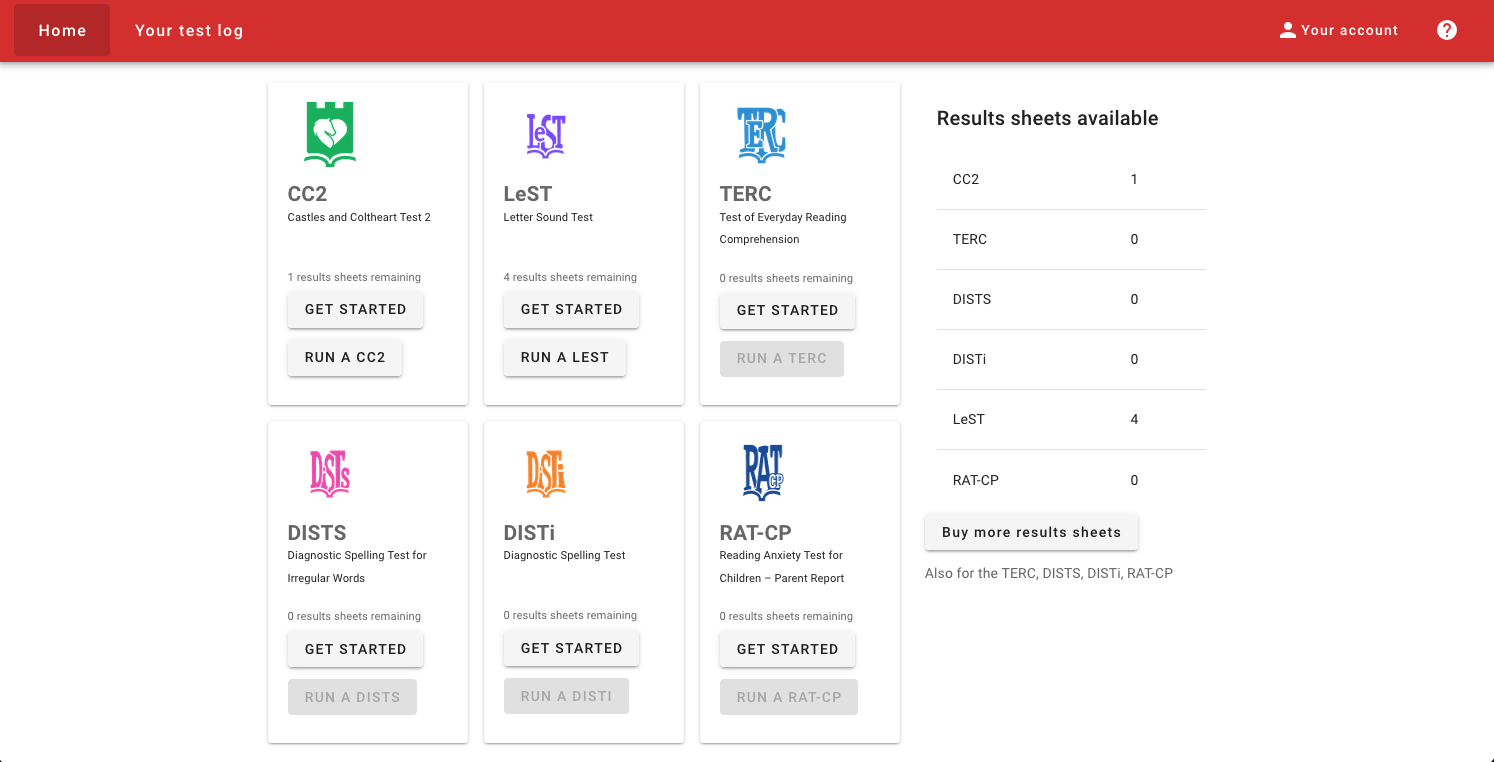
For tests you already have available results sheets (CC2 and LeST tests in the above screenshot), click "Get Started" to go to one of the tests.
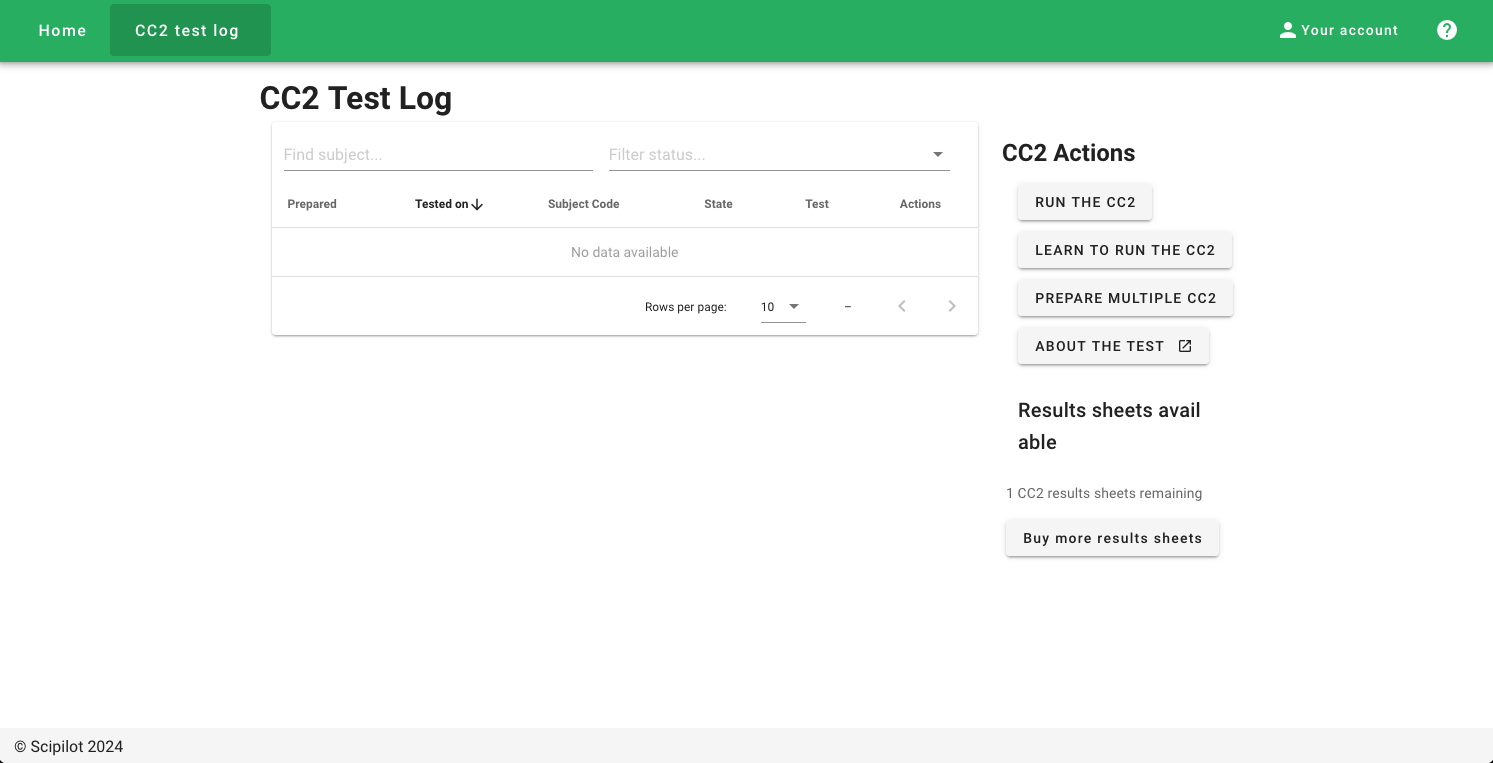 This is the test homepage, which has your test log for this test, and actions for running, learning, or preparing multiple new tests. Click "Run the CC2" to start a CC2 test. This is the same action is also available from the dashboard.
Run the CC2 test
When on the CC2 test homepage, click “Add Subject Details”

Click save, returning to the home screen.
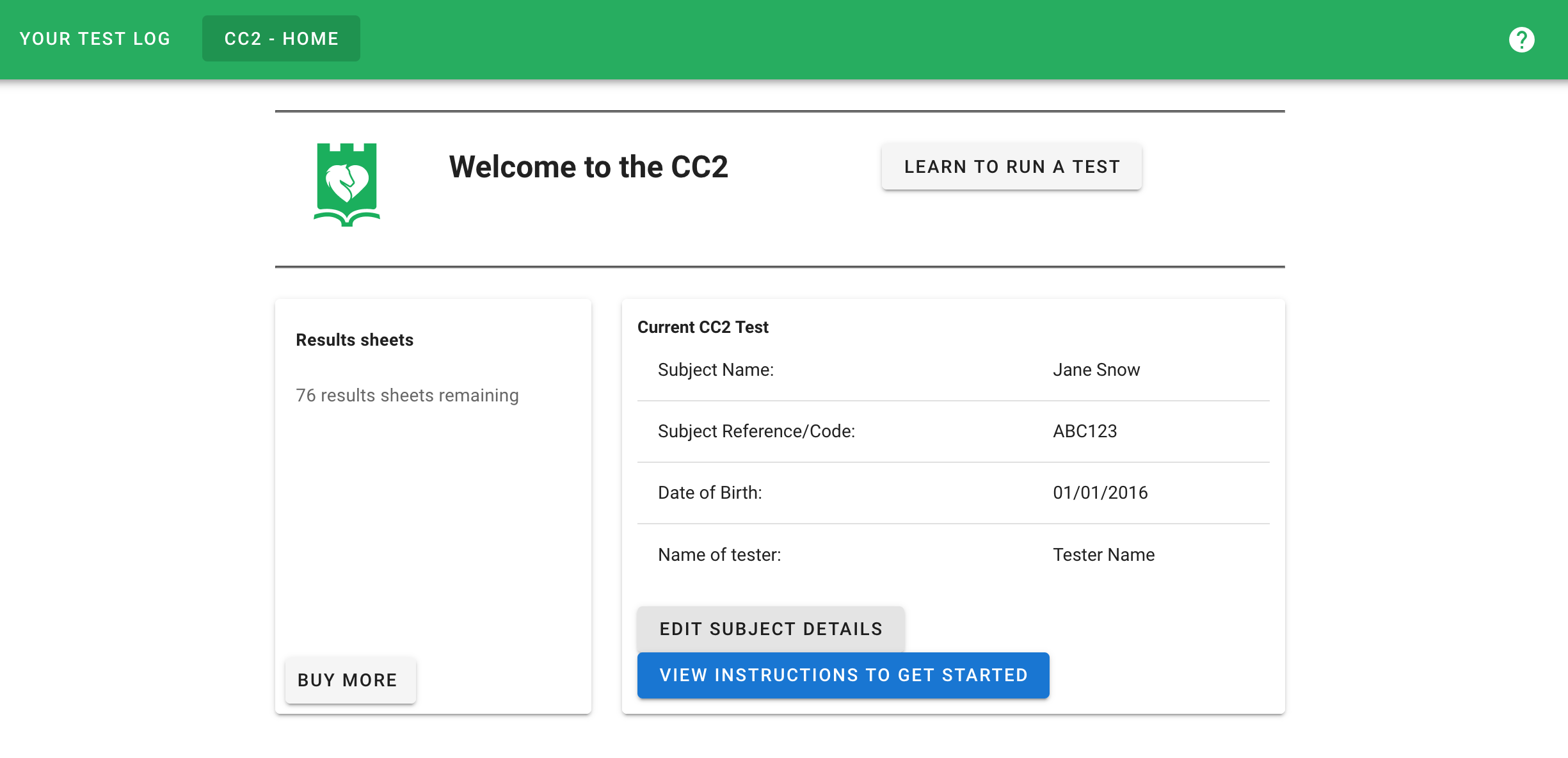
Click “View instructions to get started” to see the script you’ll read to the child before the test. When you and the subject are ready, this is the screen you read before starting.

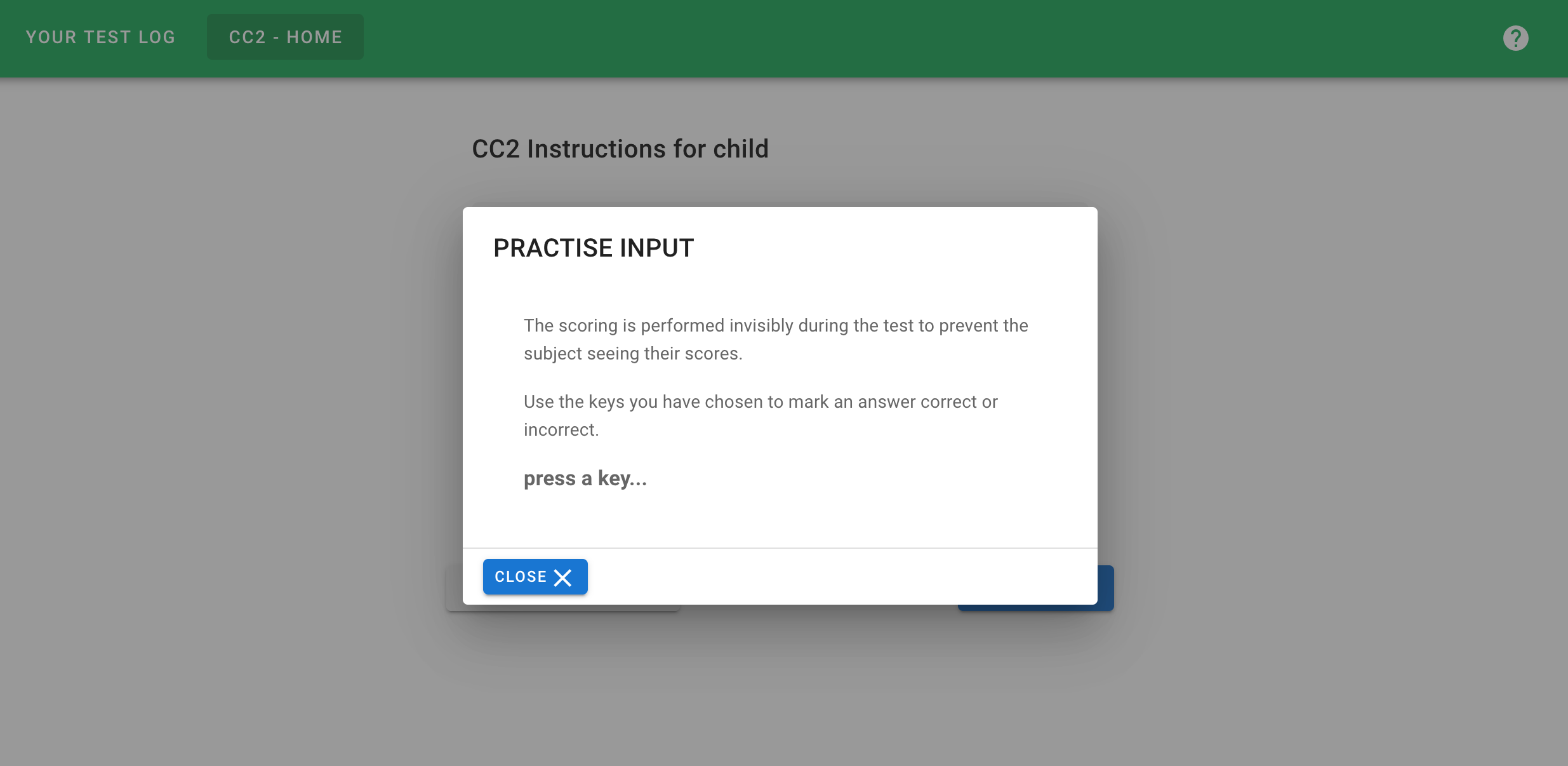
If it’s your first time, click “Practise marking” to remind yourself of the shortcut keys for marking correct / incorrect. By default, the keys are “z” for correct, and “x” for incorrect.
Press “Begin test” and show the screen to the subject.
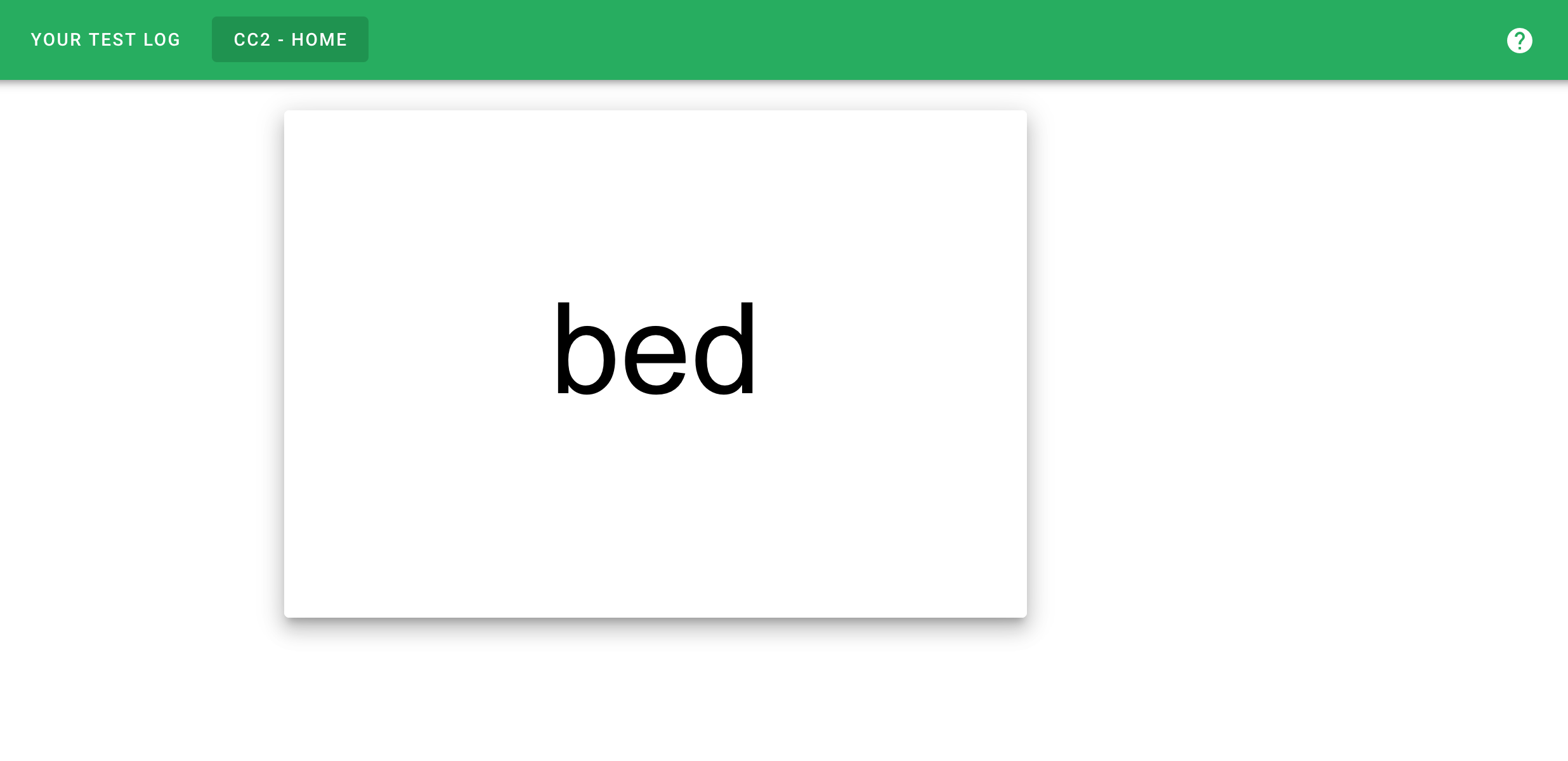
Based on the spoken response, enter the shortcut key for incorrect (x by default) / correct (z by default) scoring, and the next word will display. Occasionally, this can take over 5 seconds to change, but just wait patiently and the next work should display.
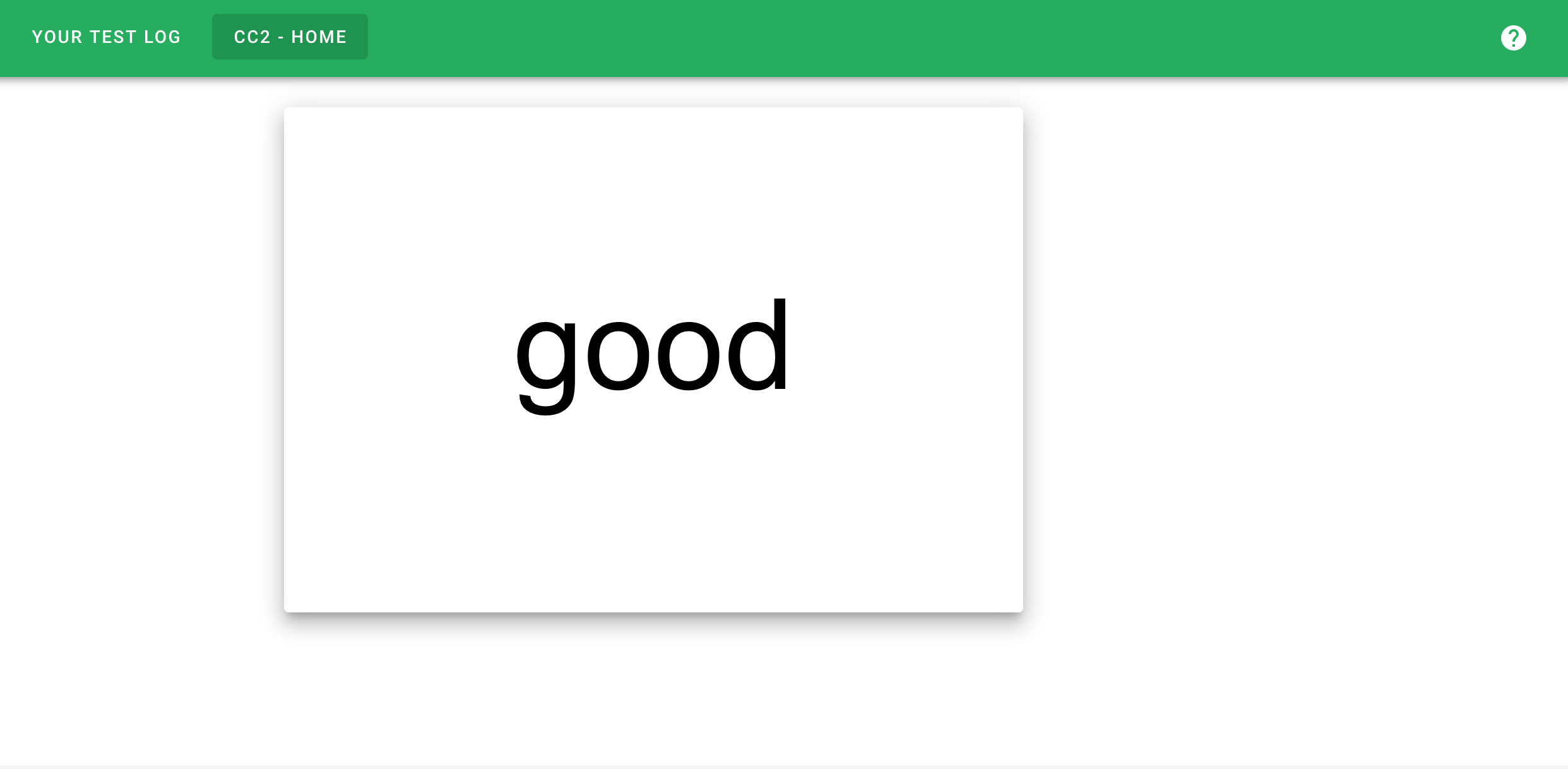
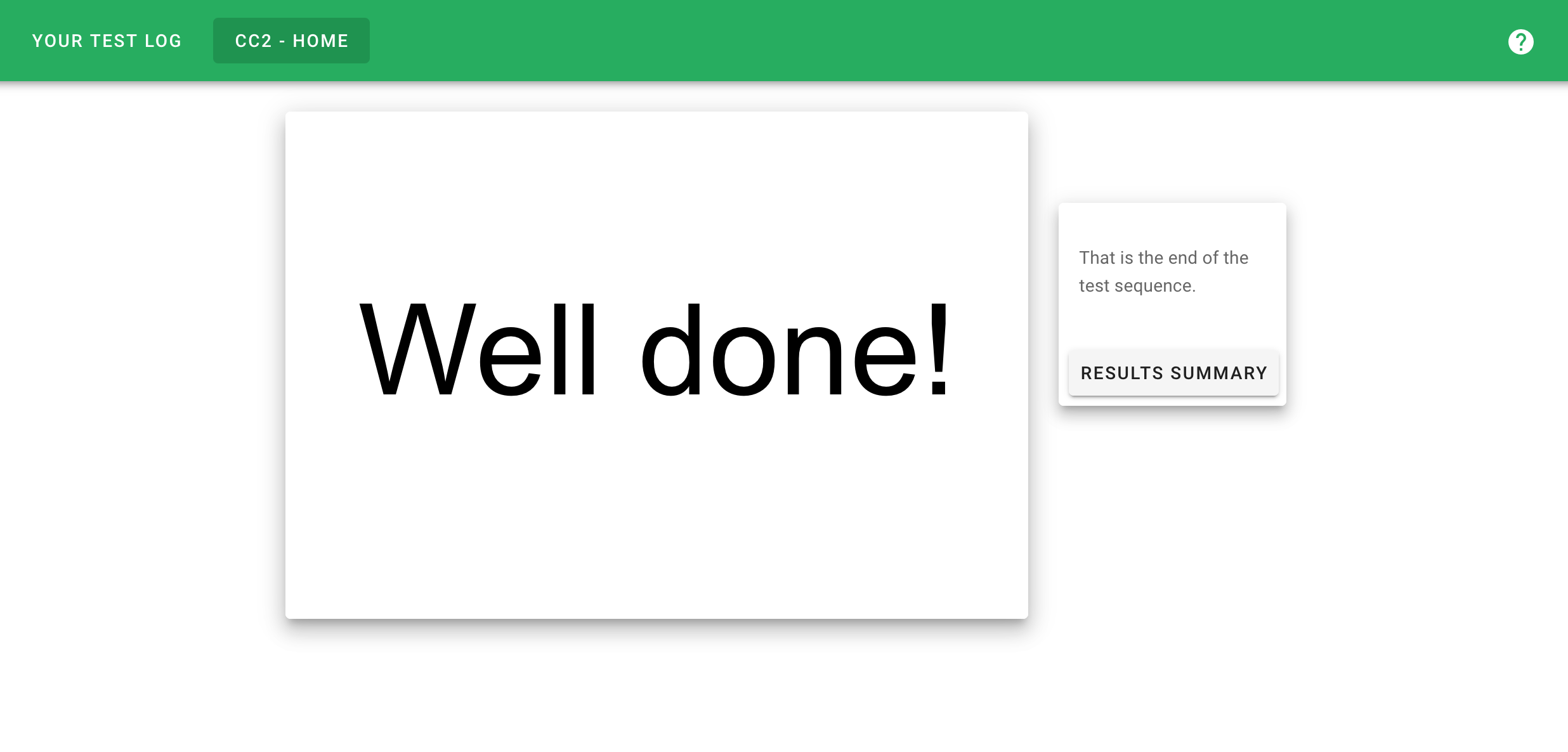
At the end of the test, you’ll see this, and you can pull the screen away from the subject. Click “Results Summary” button.
You’ll see a page like this, with your subject’s results

You're all done!
Options for printing and retrieving results later
Printing and storing PDFs
You can print and store PDFs in your own records, if this is more convenient for you. Motif also stores all results for you to look at later. To print and store results:
Press the “Print” button, which will open a new tab with specific display of this content suited to printing, and automatically start the print process.
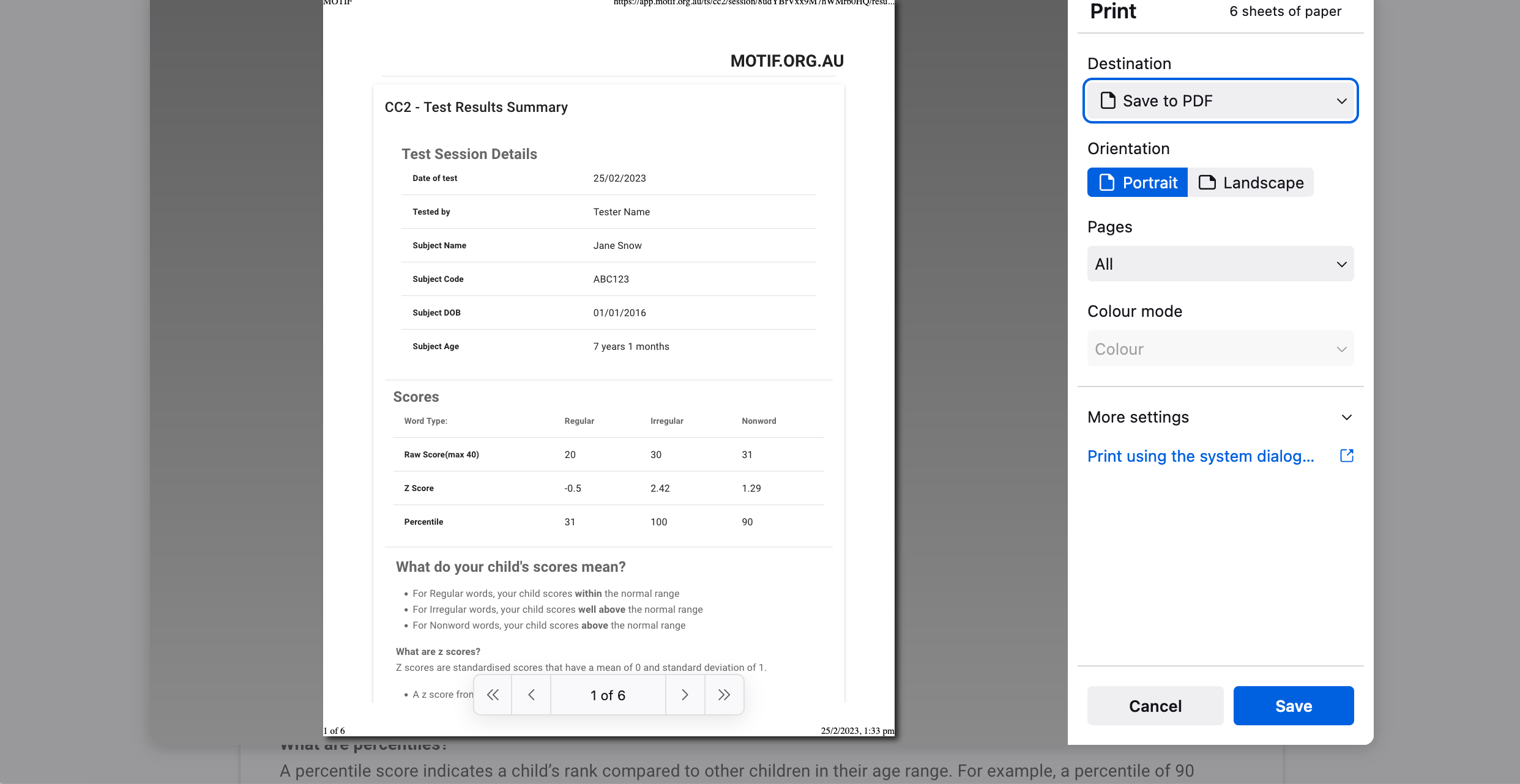
From the Print dialog, find the “Save to PDF” option, and hit Save.
Place this file in your filing for the CC2 tests.
Close the new tab that was opened for the Print experience.
Viewing a previous test from the Test Log
Click “CC2 test log” in the primary nav, or "Get Started" under the CC2 in the Dashboard.
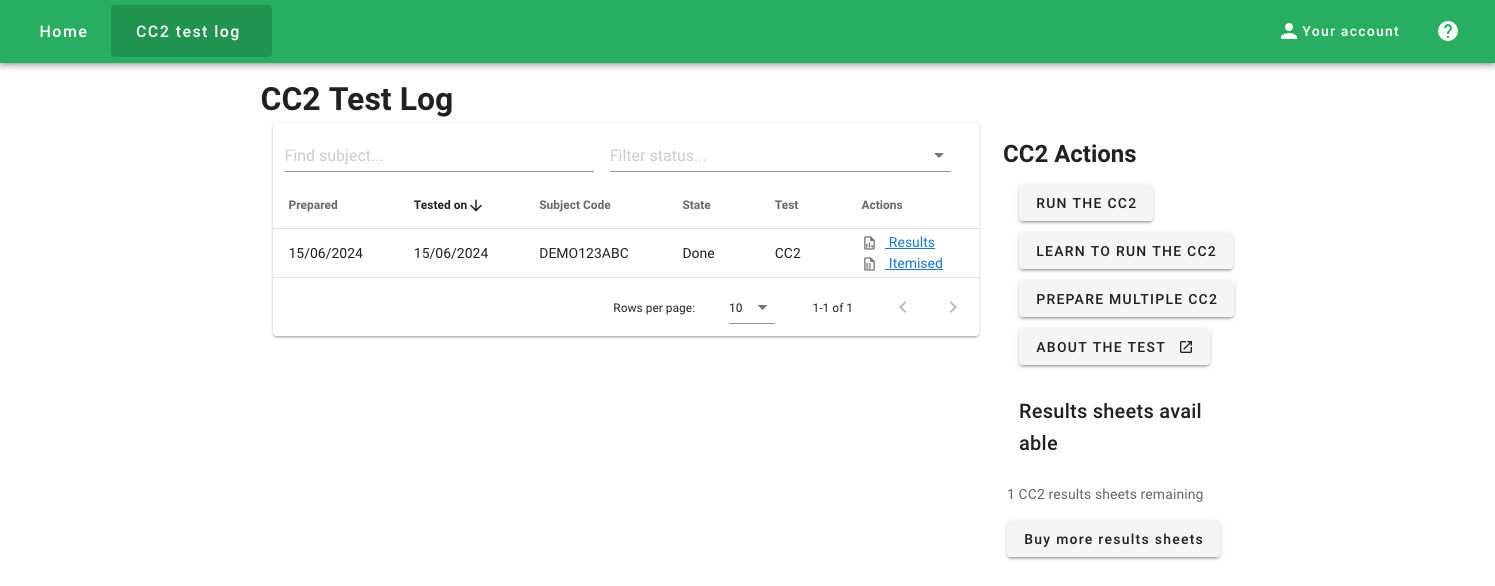
Find your specific results sheet by searching based on subject, or test status
Click "Results" or "Itemised" in the right hand column of the table to load the results for that test.
Was this article helpful?
That’s Great!
Thank you for your feedback
Sorry! We couldn't be helpful
Thank you for your feedback
Feedback sent
We appreciate your effort and will try to fix the article